
Platform manual
From discovery to delivery, with every step clear
A practical guide to accounts, product selection, the cart, checkout, orders, tracking, quality documents, and support.
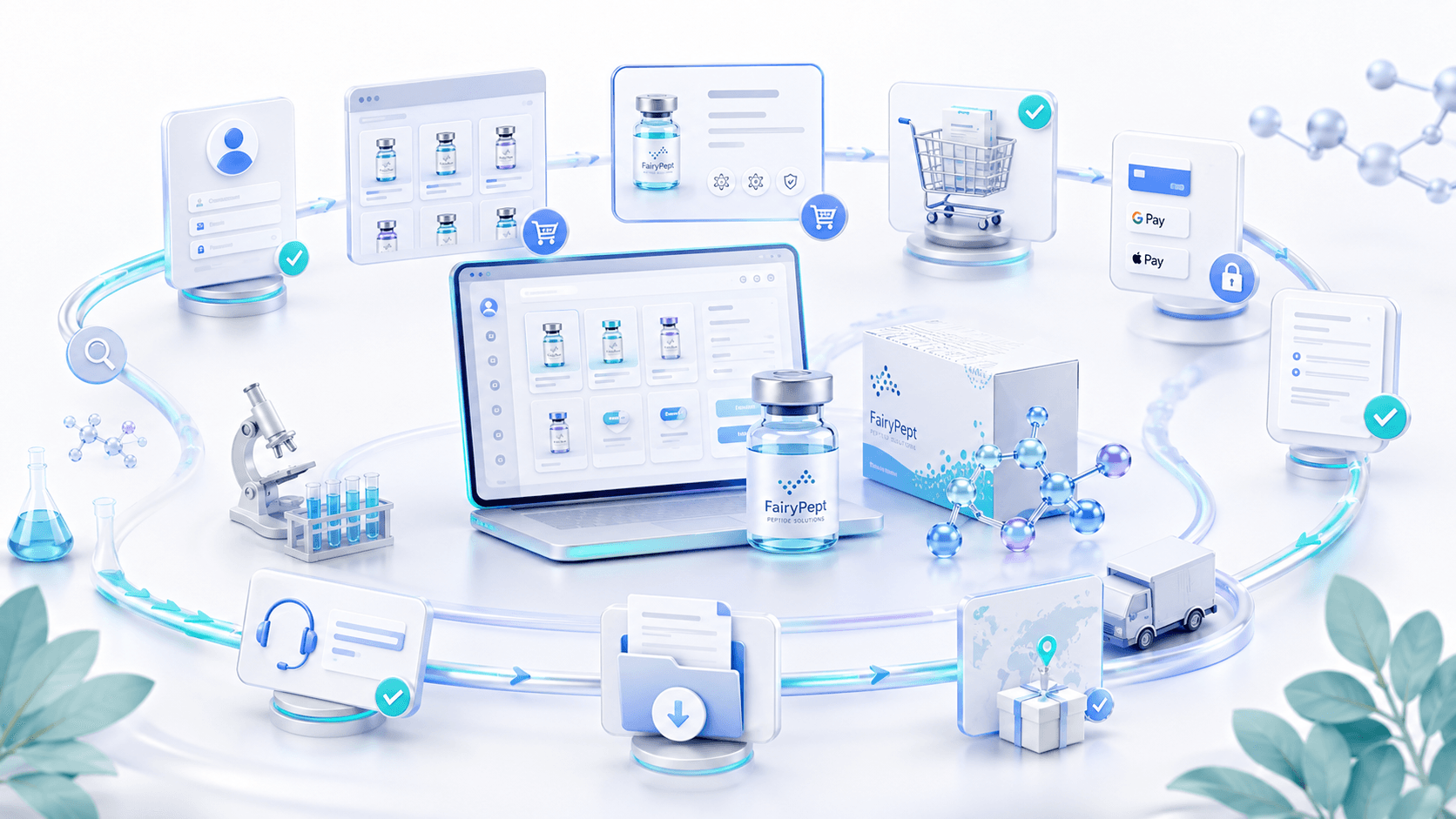
Platform journey
Discover, filter, cart, deliver, and follow the orderChoose an available specification
See delivery and payment options at checkout
Follow orders in your account and review quality documents
Before you begin
Use a valid email address to register, complete the verification steps shown, and keep your sign-in details safe. Sign in before placing an order.
Detailed workflows
A clearer shopping journey, step by step
Choose the task you are working on, review the key steps, then continue on the relevant page.
Choose a step
Journey progress01 / 08
How-to guide01
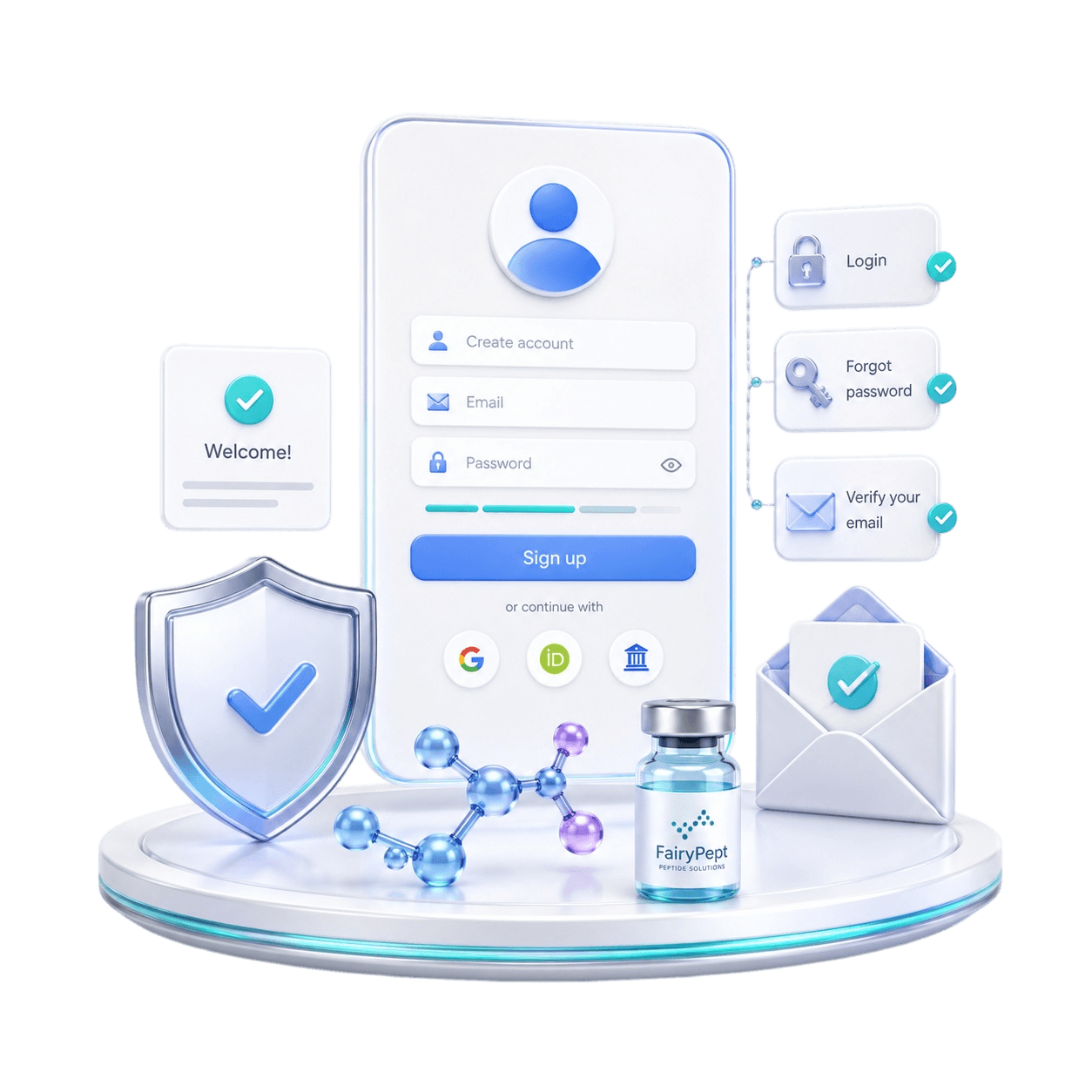
Set up your account
Register with a valid email address, complete the verification steps shown, and sign in to manage your account. Use password recovery if you cannot sign in.
Sign in before placing an order
Use an email address you can access
Sign in when an account action requires it
How-to guide02
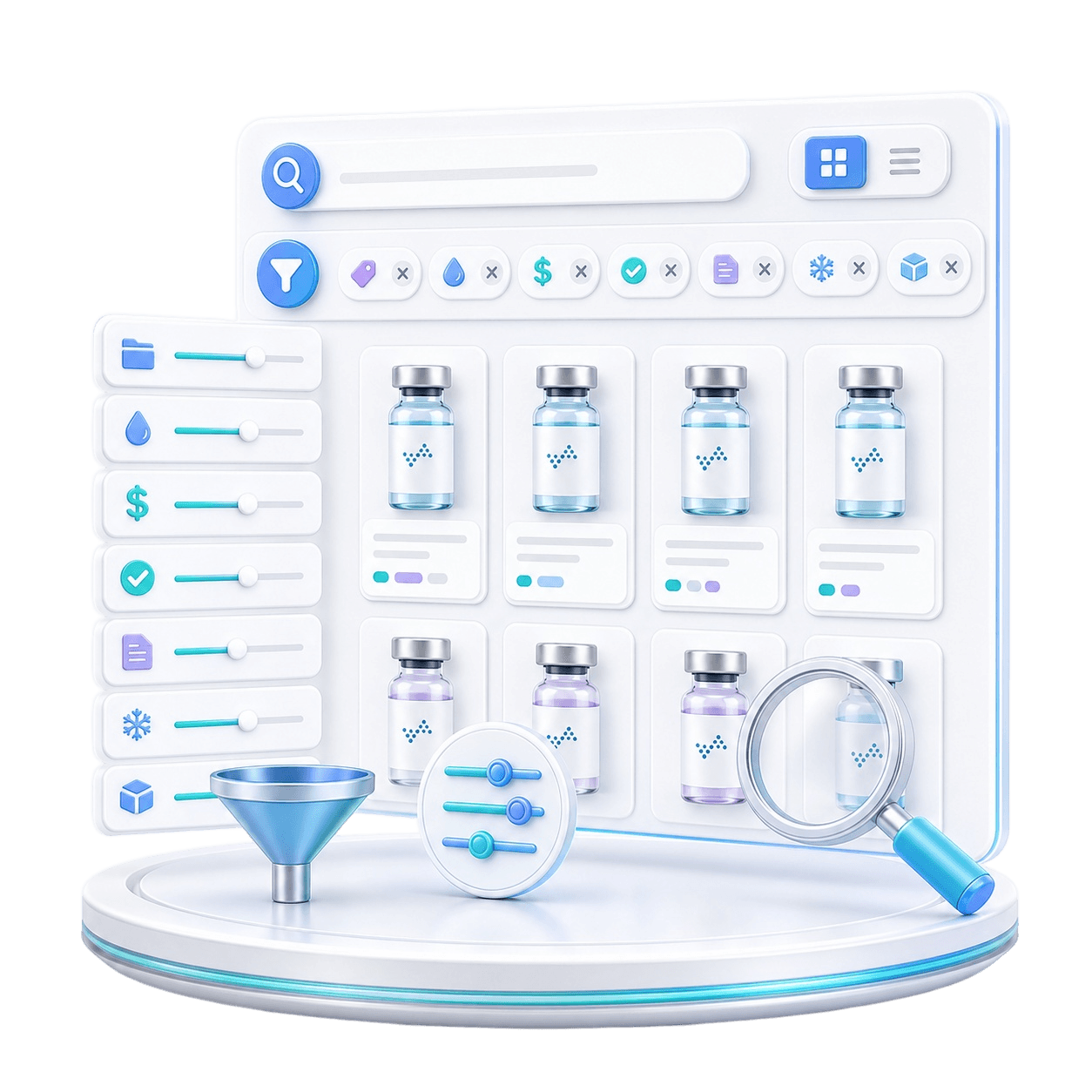
Search and filter the catalog
Search and sort products, switch grid or list view, and filter by category, purity, price, availability, file level, storage, or packaging.
Most filters apply to currently loaded results
Combine relevant catalog filters
Change sorting and result layout
How-to guide03
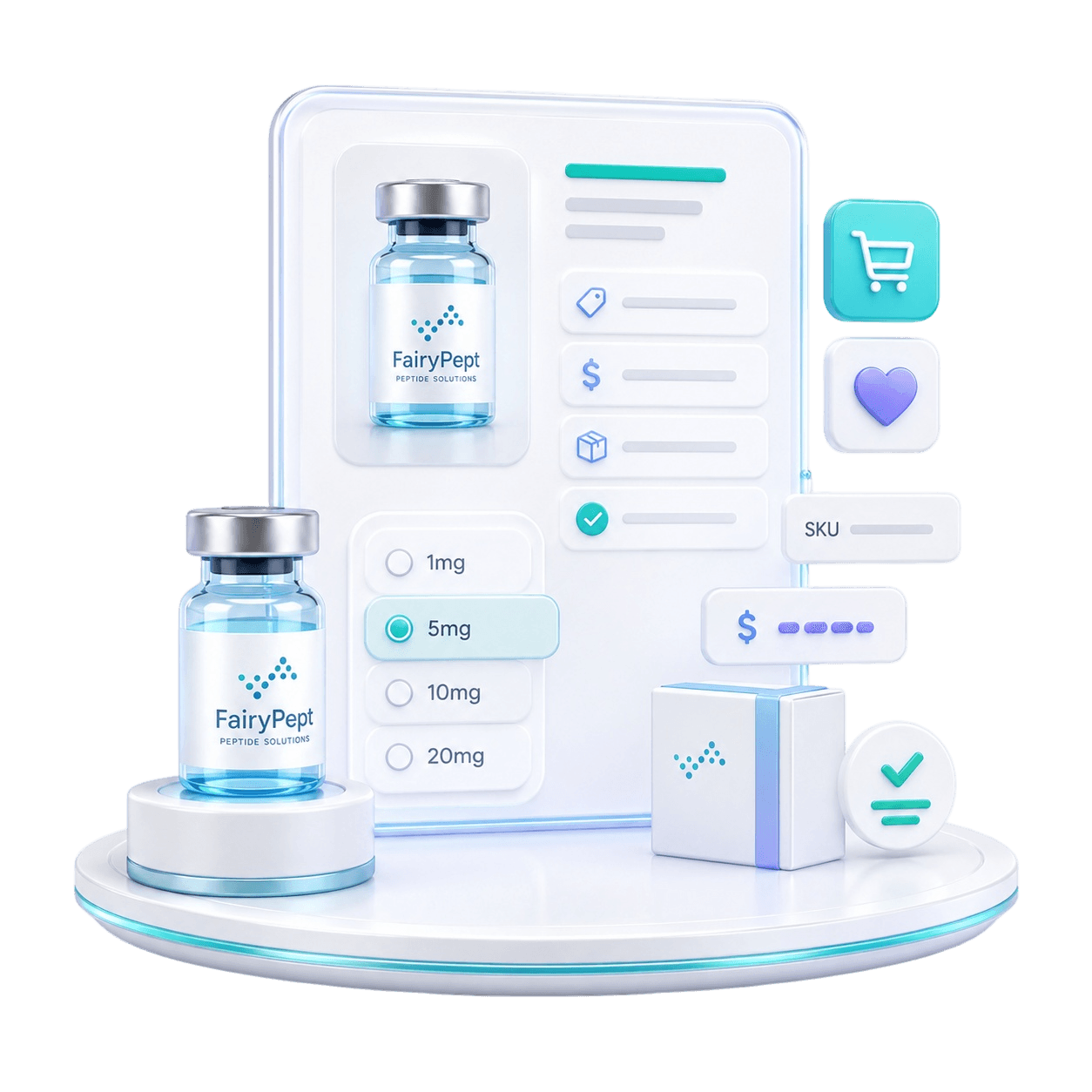
Review product specifications
Choose a specification and check its SKU, price, packaging, and availability before adding it to the cart or wishlist.
Unavailable specifications cannot be added
Wishlist is available on product details
Product files are often request entry points
How-to guide04
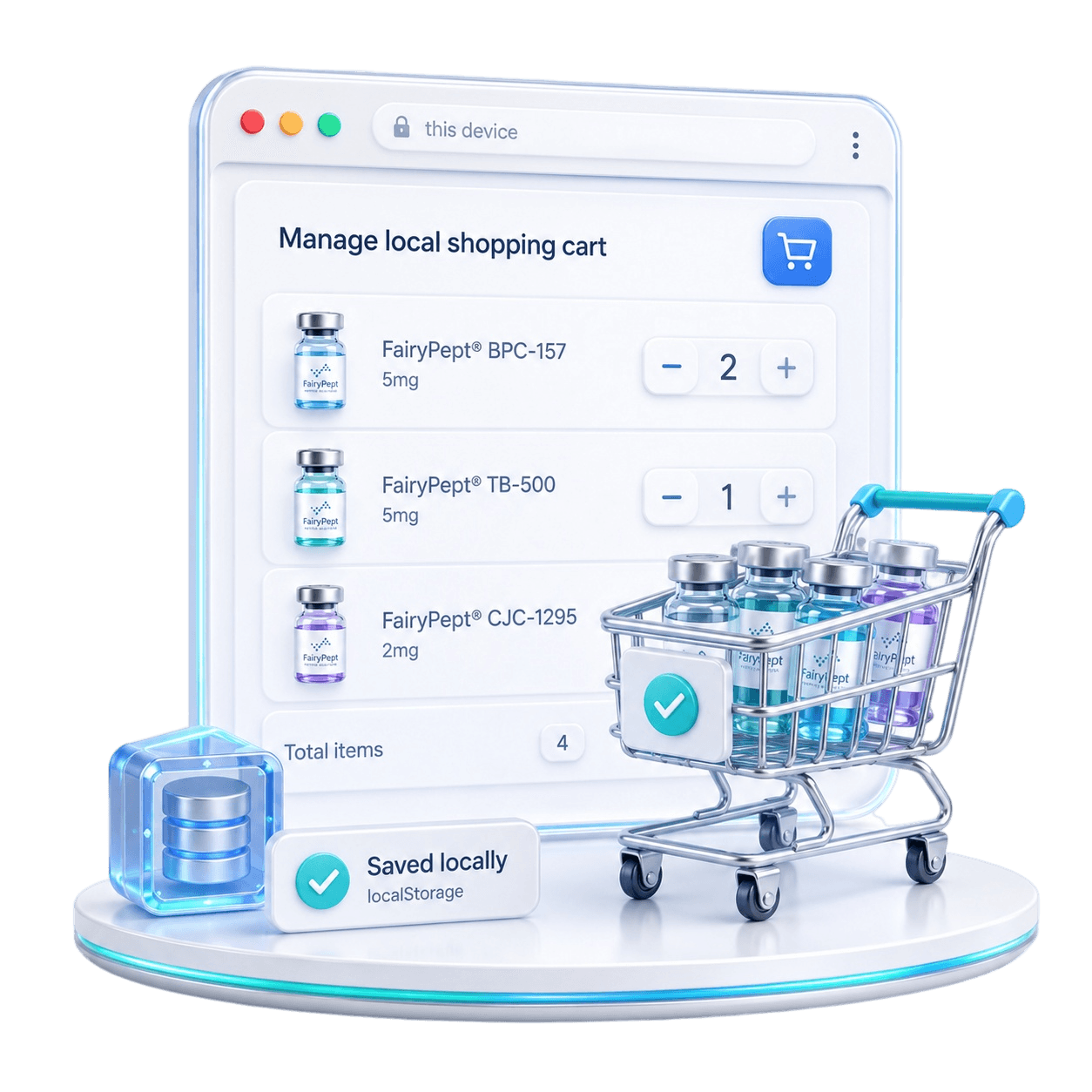
Build a browser-local cart
Review your selected specifications and quantities. The cart is saved in the current browser; clearing browser data may remove it.
The cart does not sync across devices
Changing browser data can remove the cart
Specifications, prices, and availability are checked again at checkout
How-to guide05
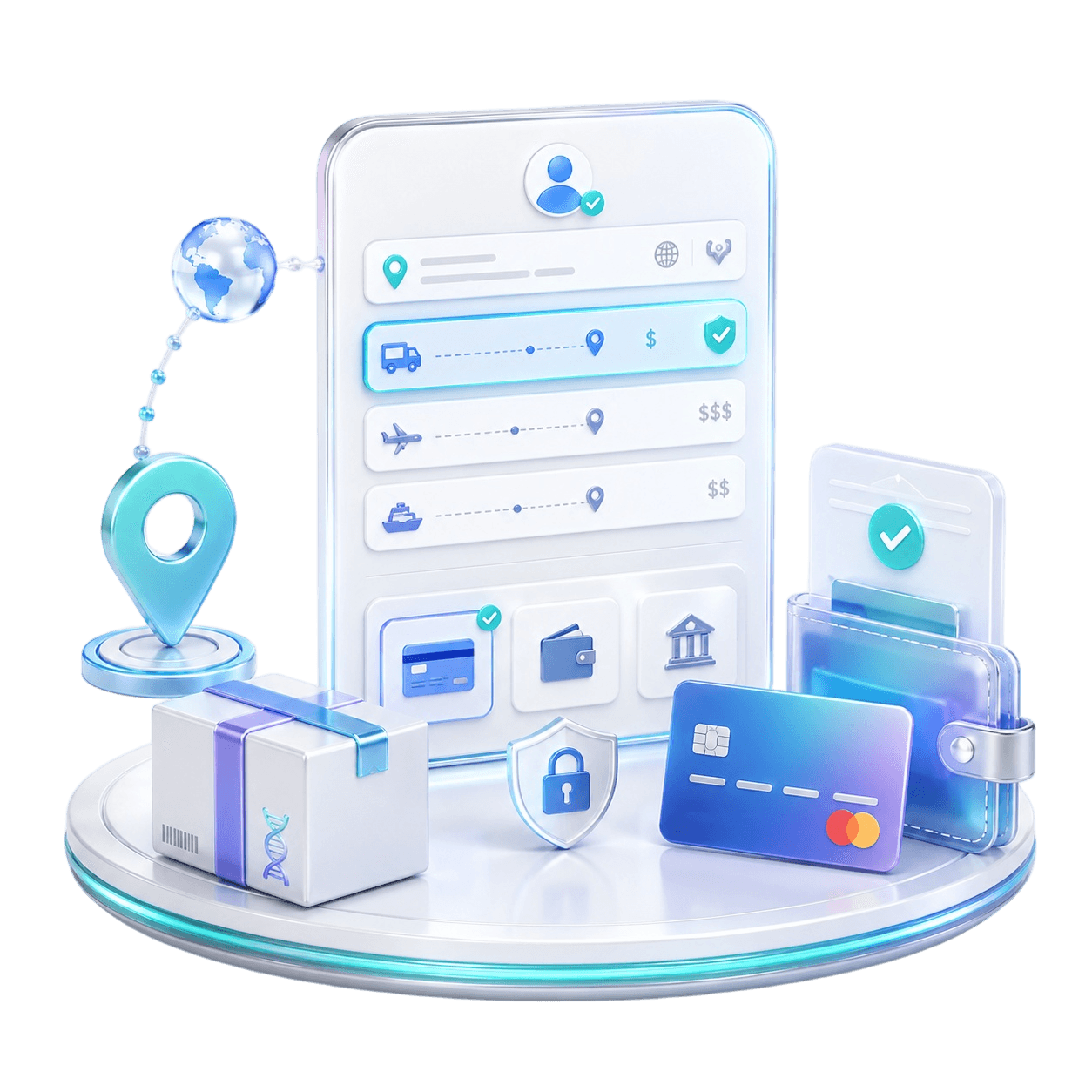
Choose delivery and payment
After signing in, enter destination details to receive country- and postal-code-based delivery quotes, then choose an eligible payment method.
No delivery option means checkout cannot continue
Payment methods depend on region, currency, amount, and enablement
Review all details before placing the order
How-to guide06
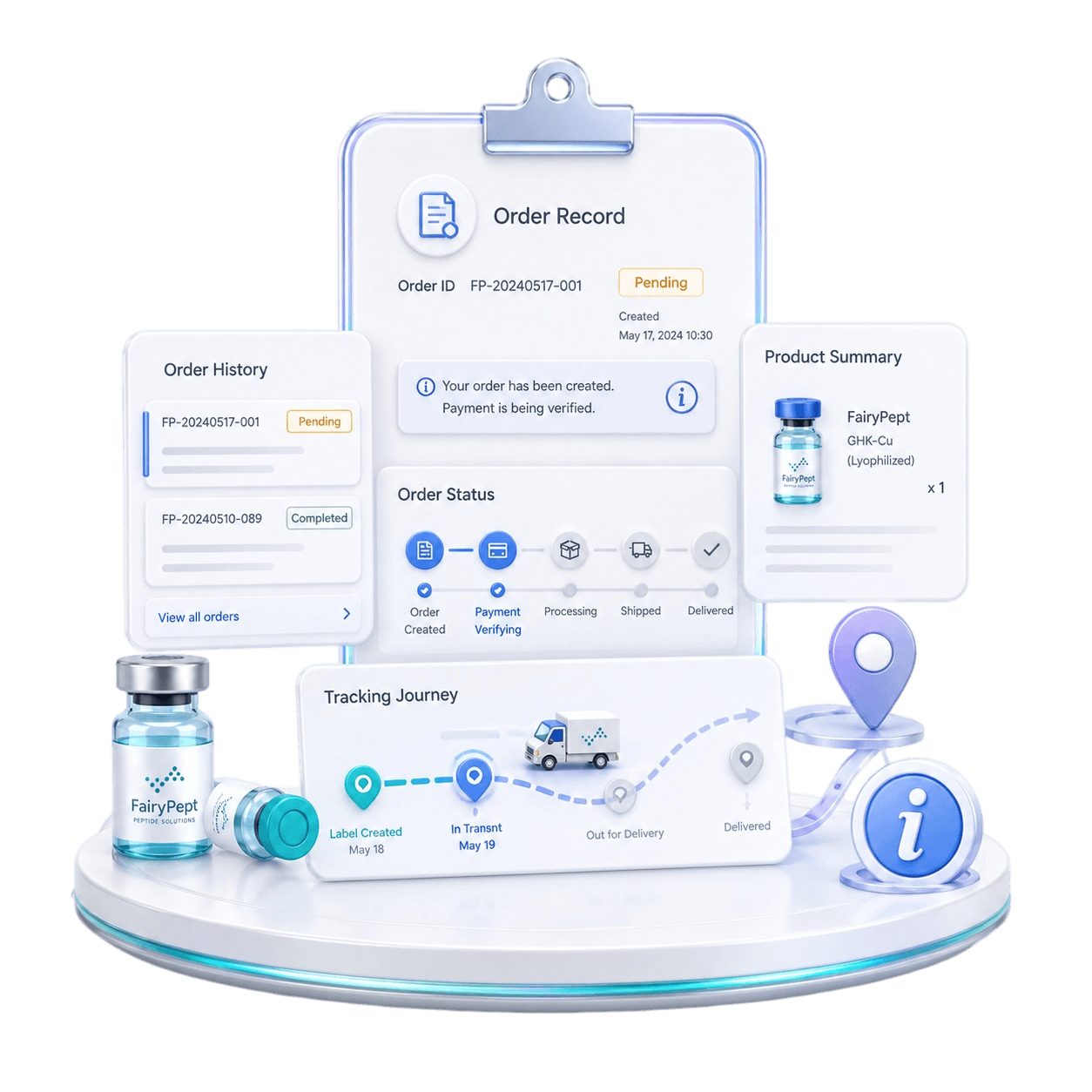
Understand orders and tracking
View orders, statuses, and items in your account. Eligible orders show an option to continue payment; tracking becomes available after a tracking number is provided.
Order creation and payment success are separate
Continue payment only when the order shows an eligible option
Follow the shipment when tracking information is available
How-to guide07
Review quality documents
Browse the public quality document library, use categories to find records, and check the applicable product and batch. Contact documentation support for files that are not public.
Browse published documents by category
Match the product, batch, and document scope
Ask documentation support about non-public files
How-to guide08
Contact support
Use the support entry to submit a question and include the relevant order or product details. Sign in first when an account action requires it.
Submit questions through the support entry
Include the relevant order or product details
Sign in when an account action requires it
Status literacy
Order is not the same as payment
Read each stage independently so a created order is never mistaken for a completed payment or dispatched parcel.
Select a status to see what it means
Order created
The order record exists; payment may still be pending or unsuccessful.
Payment confirmed
Payment has been confirmed. Check your account for the current order progress.
Order processing
Use the account status summary to follow the current order stage.
Tracking available
Tracking becomes available after a tracking number is provided.
Before you continue
Check the applicable conditions first
Available actions depend on your destination, order, and the options currently shown.
Shipping and payment depend on the options available for the current destination and order
Continue payment only for an eligible order that displays the option
After-sales requests depend on order eligibility and policy; submitting a request does not mean approval or a completed refund
The cart is saved in the current browser; synchronization across devices is not guaranteed
Useful shortcuts to keep you moving
FairyPept
Start with the catalog, continue with clarity
Browse products with the real workflow in mind, or contact support when a product, document, checkout, or shipment needs review.